
Repurposing podcast episodes into short-form video clips is one of the most effective ways to extend the life of your content and increase reach on platforms like LinkedIn, YouTube Shorts, and Instagram.
This guide walks through a simple, repeatable process for turning a full podcast episode into short, professional clips using Opus.
No advanced editing skills are required, and everything can be done in one tool.
Step 1: Find the Podcast Episode
Start by locating the podcast episode you want to repurpose.
If you’re using Guests on Air:
- Log into your account
Go to In Progress
Click on the client profile - Select My Bookings
Click Get latest bookings to ensure everything is up to date - Open the published episode link
If the podcast has a YouTube version, this is ideal for repurposing.
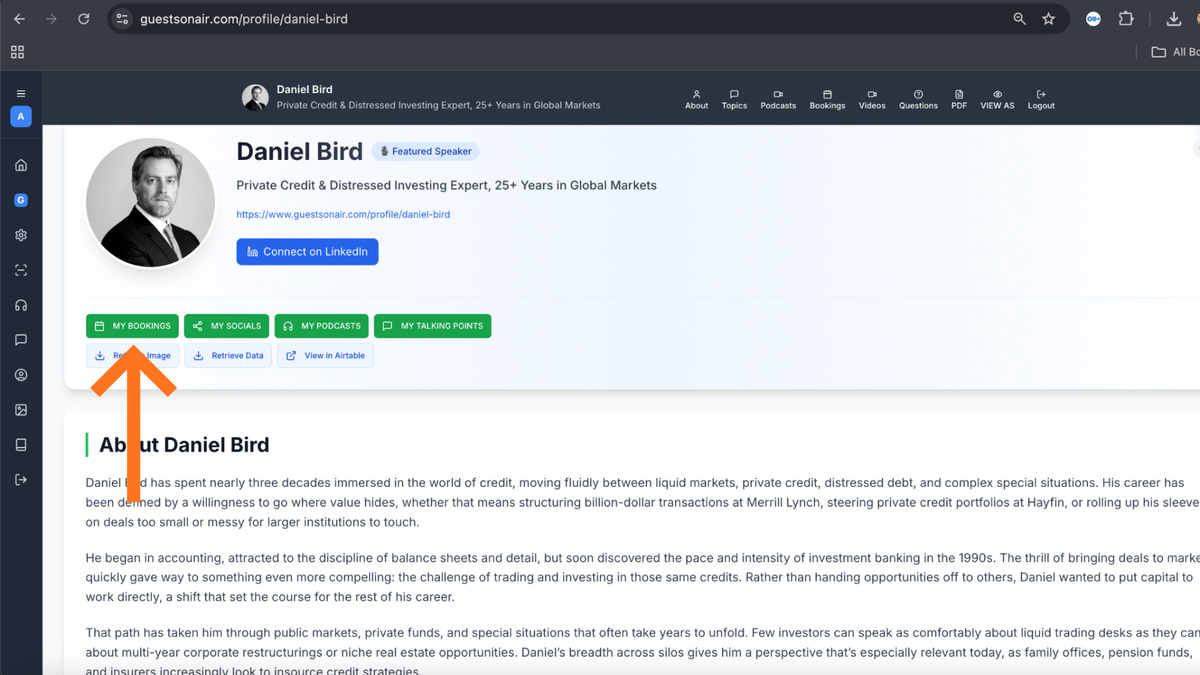
Guests on Air dashboard
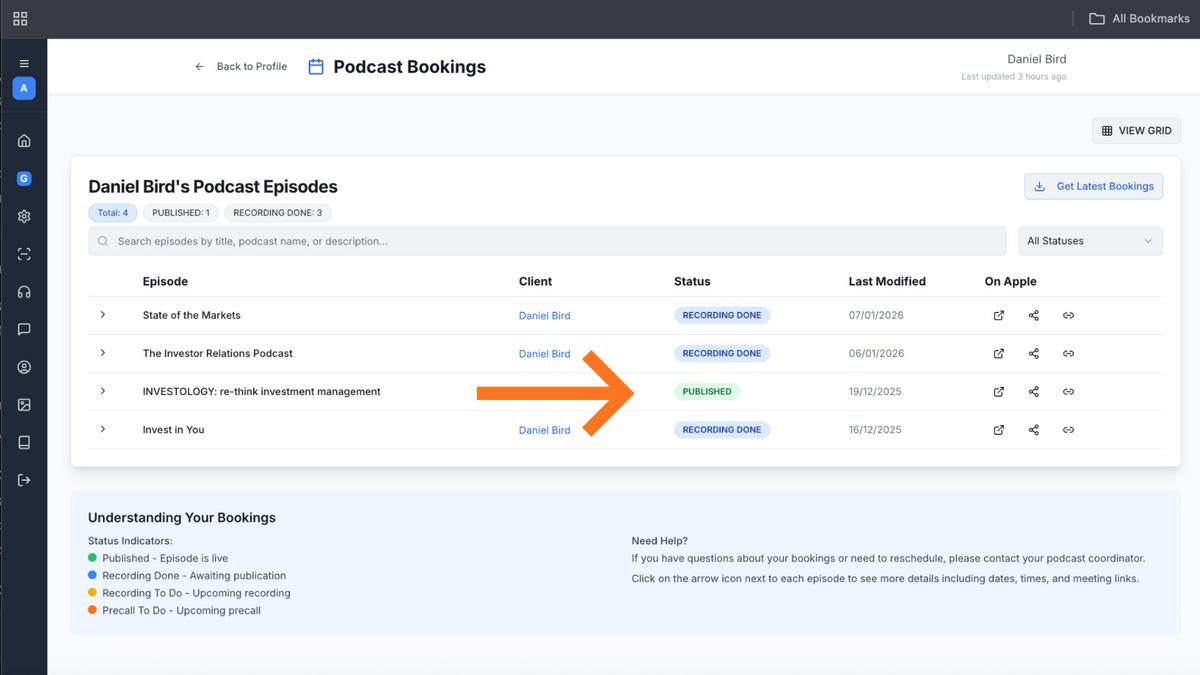
My Bookings view showing a published episode
Step 2: Get the Transcript
Having the full transcript makes it much easier to identify strong moments.
Option A: Guests on Air (Preferred)
- Go to the episode video
- Click Re-transcribe
- Copy the full transcript once it loads
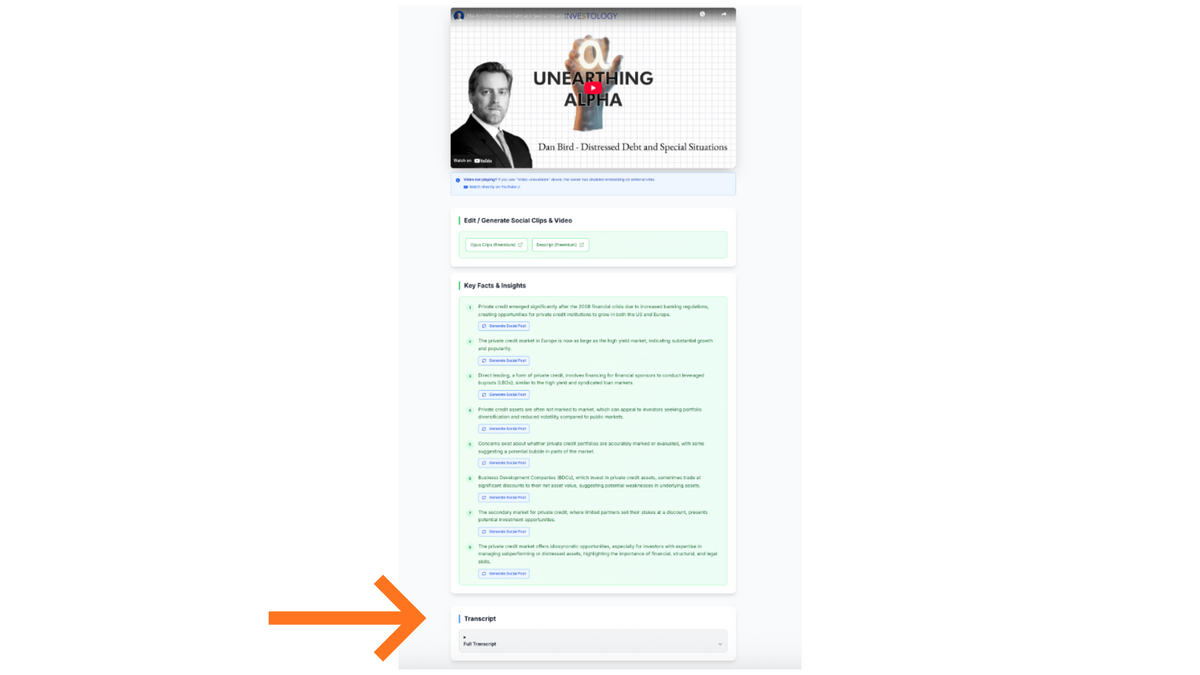
Transcript view in Guests on Air
Option B: YouTube (Backup)
- Open the YouTube video
- Click Show transcript
- Make sure “Transcript” (not chapters) is selected
- Scroll and copy the full text
The transcript will be used to quickly identify strong, standalone clip moments.
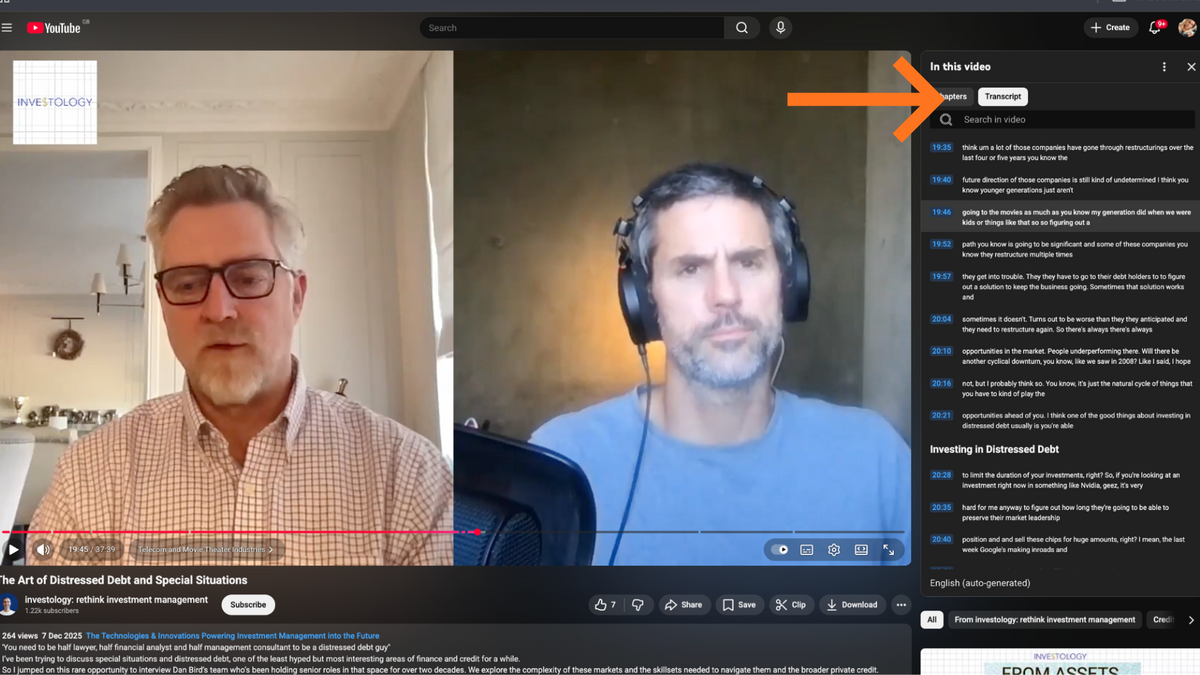
Option B: YouTube (Backup) YouTube
Step 3: Identify the Best Clip Moments (Using AI)
Instead of manually watching the entire episode, you can use AI to speed this up.
- Paste the transcript into ChatGPT (or a similar AI tool)
- Add the speaker’s approved talking points
Ask the AI to suggest:- 30–60 second clip moments
- Clear hooks
- Relevant timestamps
Focus on moments that:
- Stand alone without context
- Deliver one clear insight
- Sound calm, confident, and authoritative
From the suggestions, choose 1–2 strong clips.
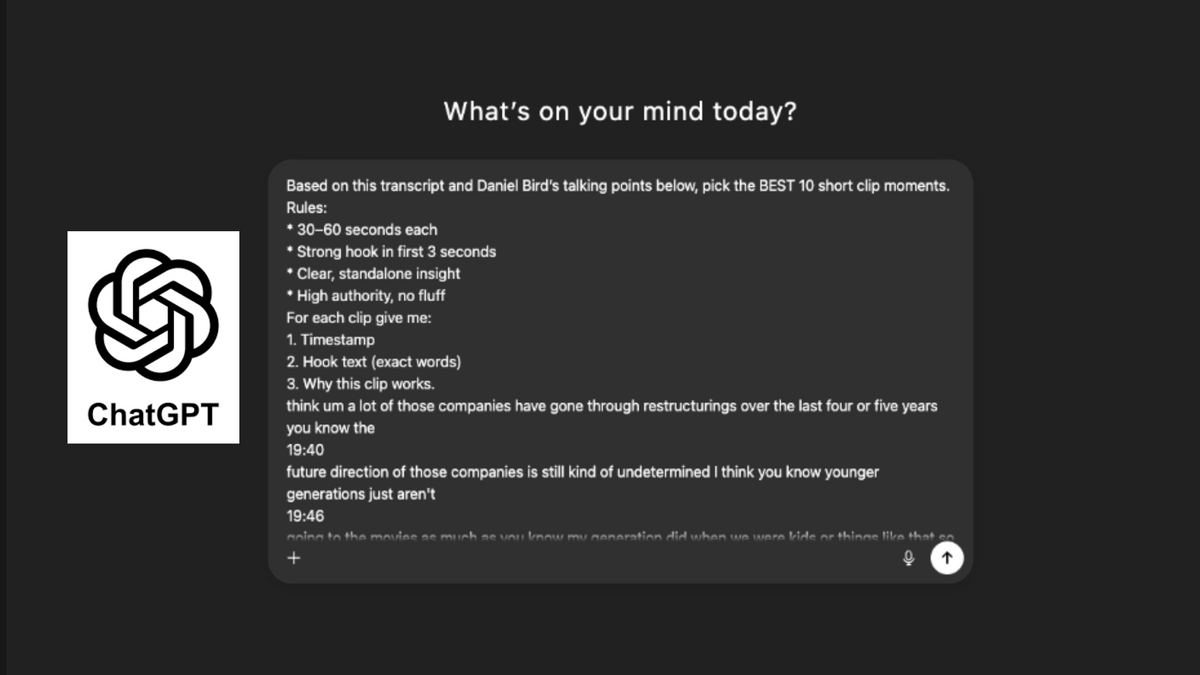
Paste the transcript into ChatGPT.
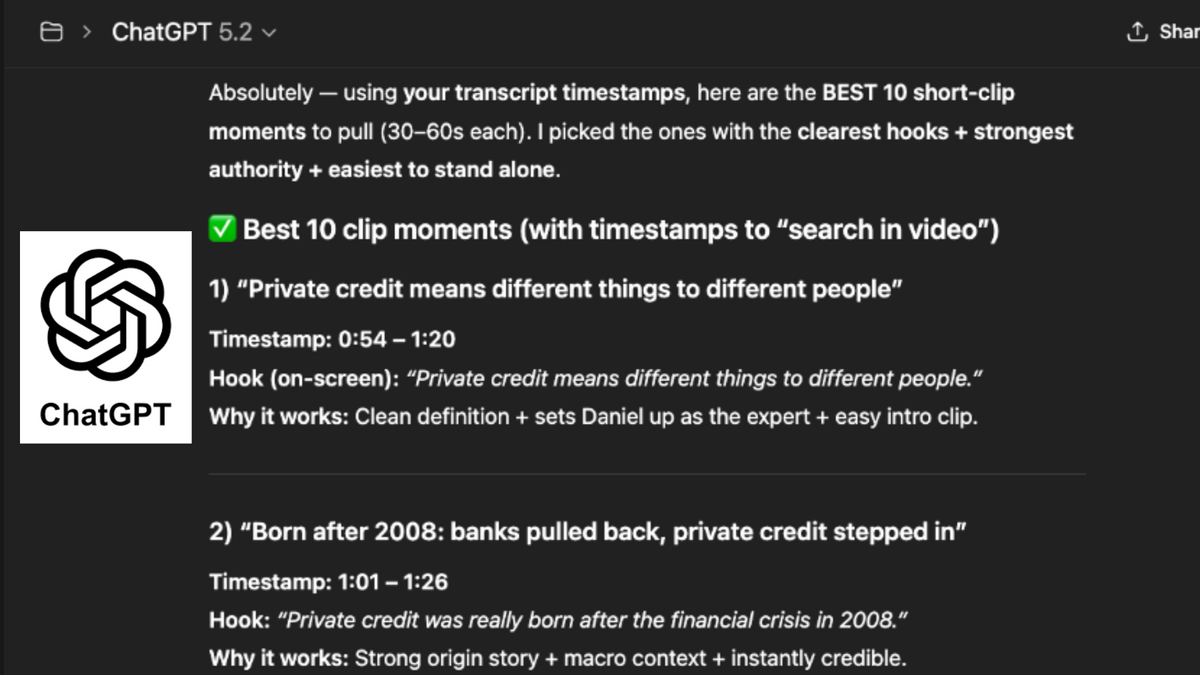
From the suggestions, choose 1–2 strong clips.
ChatGPT prompt and suggested timestamps ChatGpt
Step 4: Upload the Episode to Opus
Once the clip moments are identified:
- Log into Opus
Paste the YouTube or video link - Select options
- Click Create Clips
- Allow Opus to process the episode
Opus will automatically detect key moments and generate multiple short clips with captions.
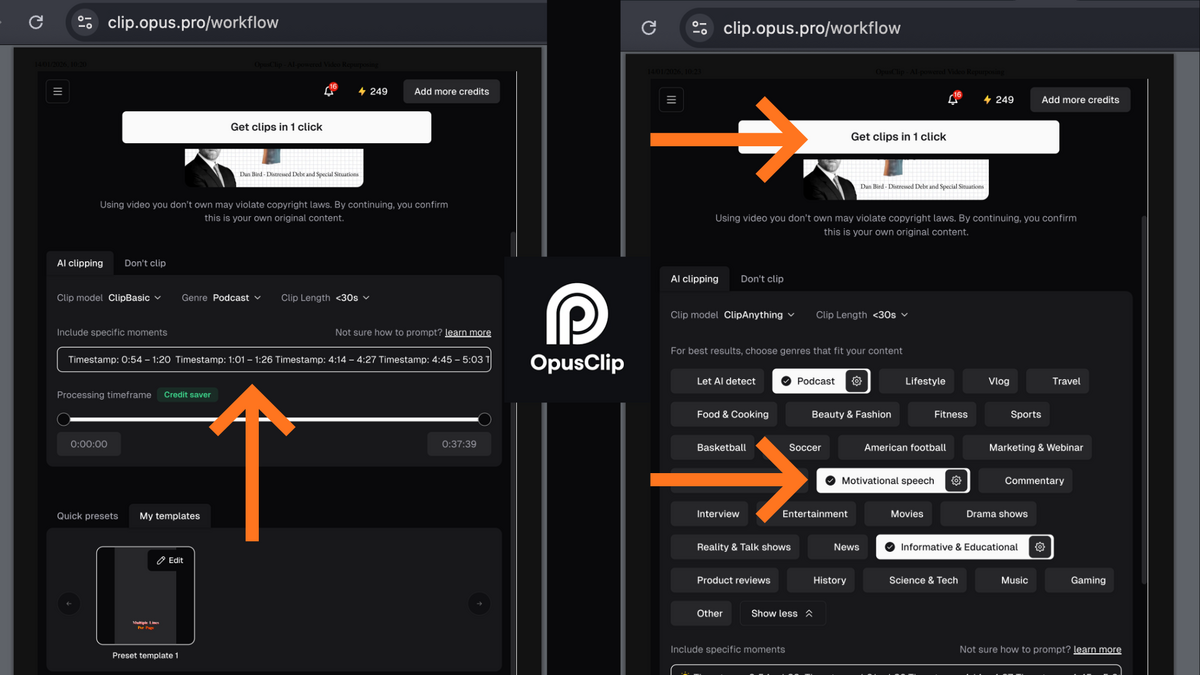
Opus dashboard showing clip generation process
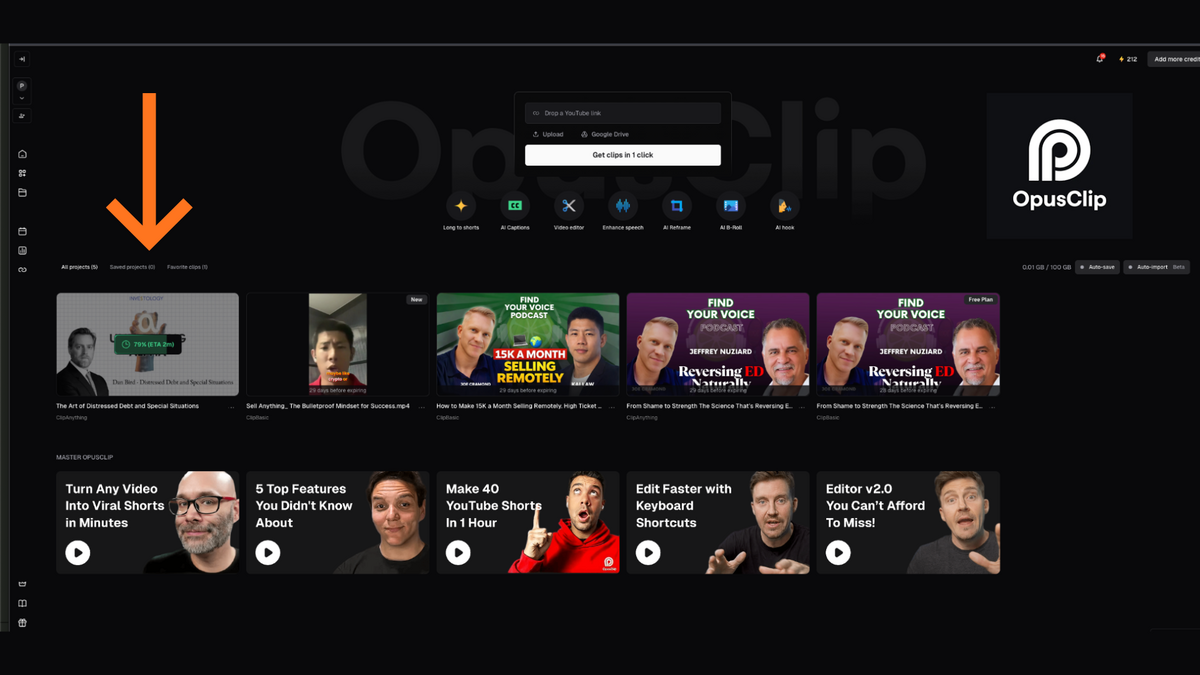
Opus dashboard showing clip generation in progress
Step 5: Review and Select the Best Clips
After Opus finishes processing:
- Review the suggested clips
- Look for:
- A strong opening hook
- Clear captions
- A natural beginning and ending
- Select 2–5 clips per episode
Quality matters more than quantity. A few strong clips will always perform better than many weak ones.
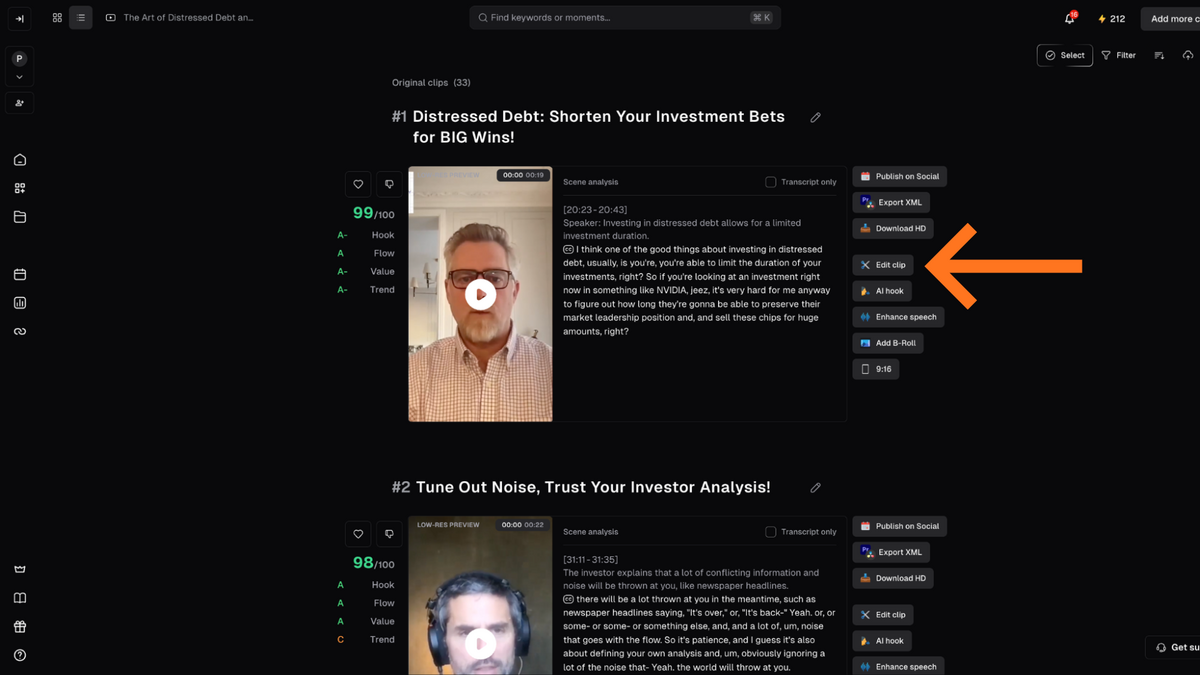
Opus clip selection screen. Click edit clip to start editing.
Step 6: Make Light Edits (Optional)
If needed, Opus allows quick edits such as:
- Trimming the start or end
Adjusting caption timing - Changing caption style
- Reframing for vertical (9:16)
Edits should be kept minimal.
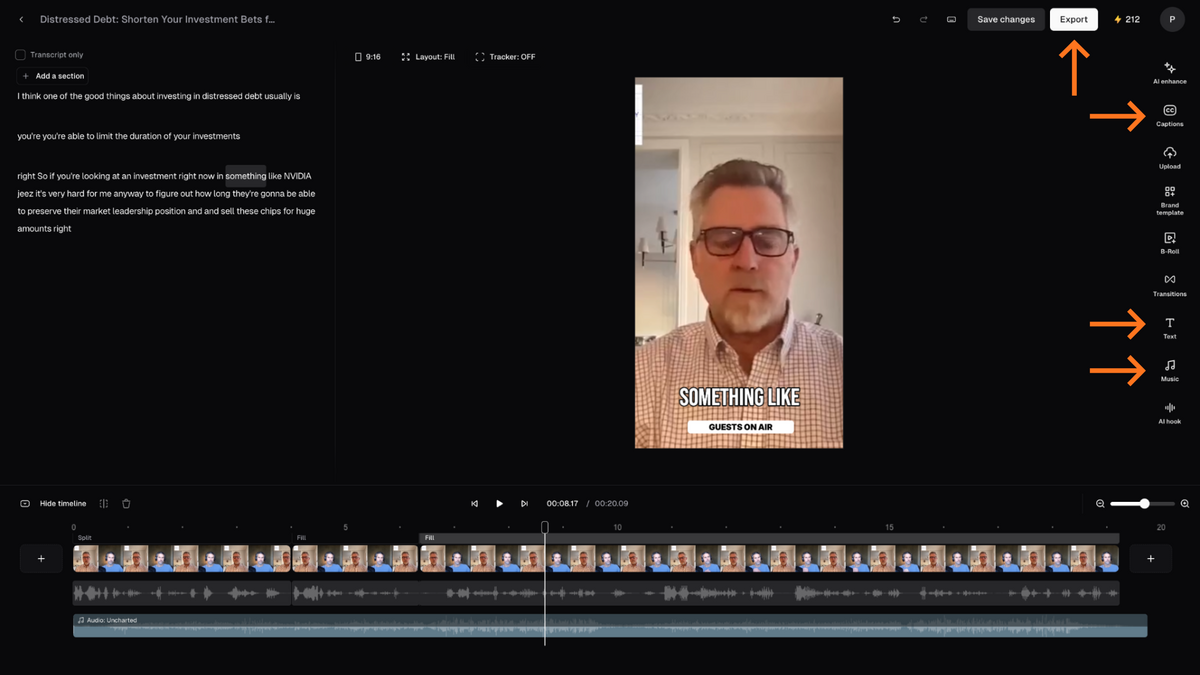
Start editing the clip by adding music, text, and captions. When finished, click Export.
Step 7: Download and Publish
Once the clips are finalised:
- Download the videos
- Upload them natively to:
- Instagram Reels
- YouTube Shorts
When posting, keep captions simple and focused on one key takeaway from the clip.
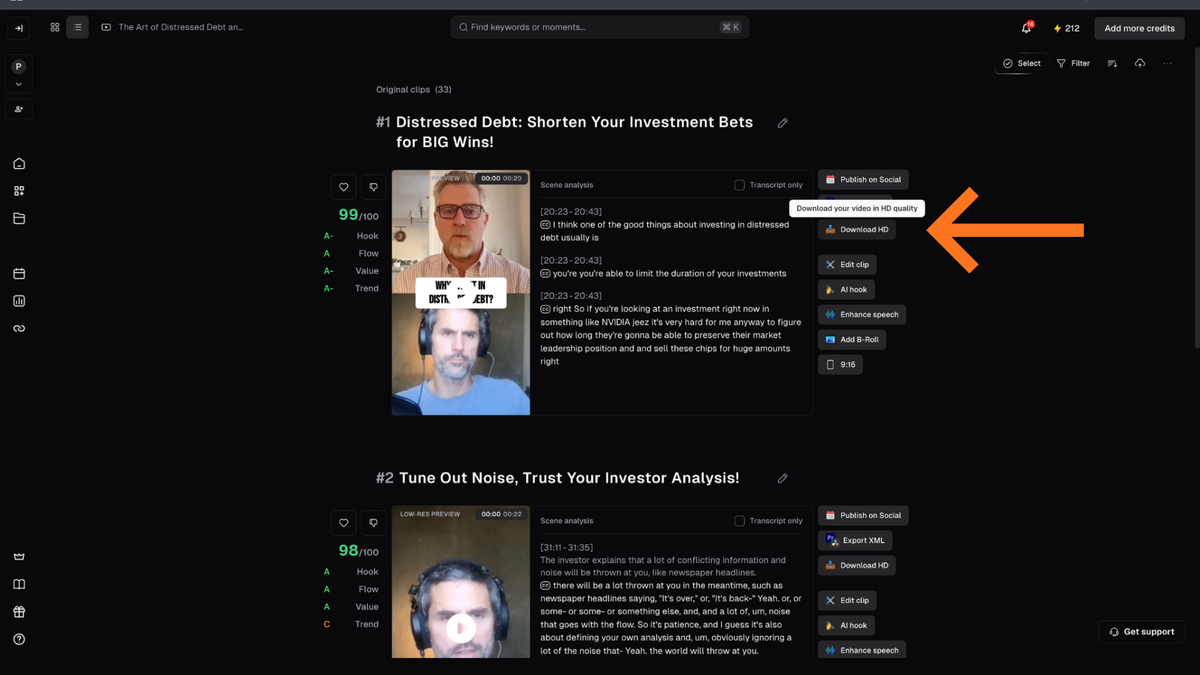
Download the snippet and start posting.
Final Notes
This workflow is designed to be:
- Beginner-friendly
Repeatable - Time-efficient
- Use ChatGPT to create captions with hashtags
With the right process, a single podcast episode can generate weeks of short-form content without needing advanced editing skills.
WANT TO BUILD YOUR OWN PODCAST-WORTHY MESSAGE?
If you’re a founder, consultant, coach, or expert — and you want to turn your message into authority and inbound leads through podcasting, this is exactly what we help our clients do at Podcast Guesting Pro by Guests on Air.
👉 Learn more:Podcast Guesting Pro